
Debian
Firewall
Set up a simple firewall on Debian with UFW.
Is it already on?
Debian doesn’t set up an active firewall for you by default. A firewall controls network connections to and from your computer, helping block unwanted incoming connections.
UFW, short for Uncomplicated Firewall, is a simple option to get started.
Install UFW
Refresh the package list:
sudo apt updateThen install UFW:
sudo apt install ufwInstalling it doesn’t turn it on yet.
Check if it’s on
Open a terminal and run:
sudo ufw statusActive means UFW is on. Inactive means it’s off.
Turn it on
On your own desktop, run:
sudo ufw enableConfirm if prompted. This also enables UFW when your computer starts, so you don’t need to repeat it after restarting.
With its default rules, UFW blocks incoming connections you haven’t allowed and permits outgoing connections. Normal browsing and downloads should still work.
Run sudo ufw status again to check that it says active.
Prefer an app? Use Gufw
Gufw lets you manage UFW with buttons and menus. Install it with:
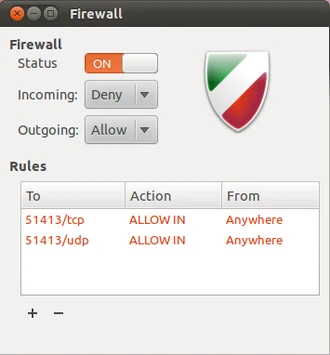
sudo apt install gufwOpen Firewall Configuration from the app menu and switch Status on. Keep Incoming set to Deny and Outgoing set to Allow for a basic desktop setup.
What if an app needs a connection?
File sharing, remote access, or hosting a game may need an extra rule to let other devices connect. Follow the app’s instructions and allow only what it needs.