
Software
 Flatpak
Install desktop apps across different Linux distros.
What is Flatpak?
Flatpak lets you install desktop apps without relying on the versions your distro provides.
- You can get newer apps without upgrading your whole distro.
- The same app package works on many different distros.
- Apps download extra files they need to run, so they can take up more storage.
Flatpak apps run in a sandbox, which limits what they can access on your computer based on their permissions.
What does sandboxed mean?
Think of a sandbox as giving an app its own space. It doesn’t automatically get access to all your files or the rest of your system. What it can see and use depends on its permissions.
Developers and package maintainers choose permissions to let the app do its job. You can usually use it normally without noticing the sandbox, while those limits add a layer of protection. For example, an app can open a file you choose without needing access to every document you own.
Some apps are given broader access than others, so being a Flatpak doesn’t mean an app is completely locked down.
More about Flatpak permissions (opens in a new tab)
What is Flathub?
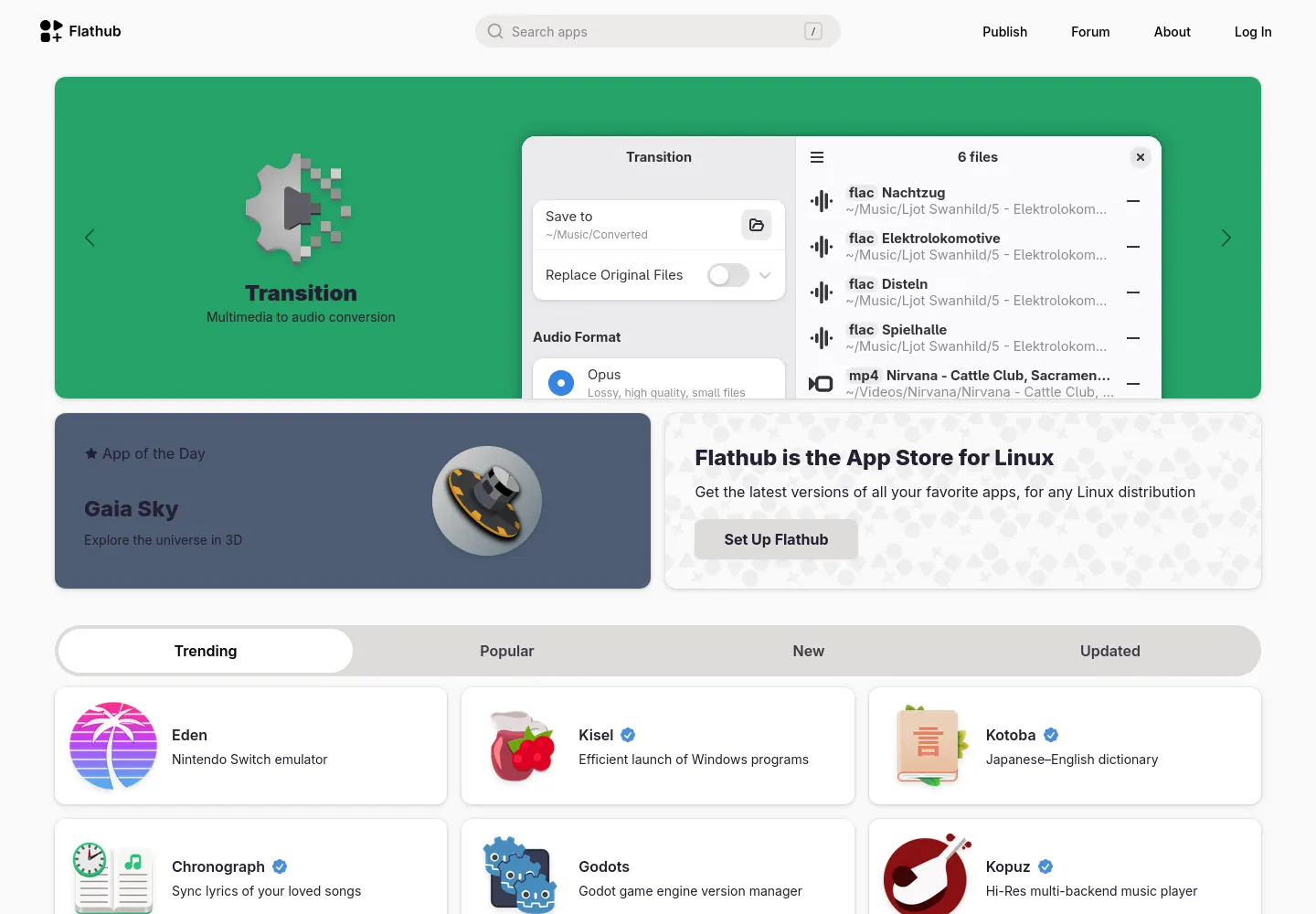
Flathub is the main place to find and install Flatpak apps, and the usual starting point for most users. Flatpak is the format; Flathub is the app store.
Find your distro’s install guide here (opens in a new tab)
Browse apps on Flathub (opens in a new tab)
Install an app
Once you’ve set up Flathub, you can install apps from it. Replace org.example.App with the app ID shown on its Flathub page.
flatpak install flathub org.example.AppUpdate your Flatpaks
Update your Flatpak apps and the shared files they need.
flatpak updateSee your installed apps
List the Flatpak apps on your system, including their IDs.
flatpak list --appRemove an app
Replace org.example.App with the ID of the app you want to remove.
Remove the app but keep its settings and saved data:
flatpak uninstall org.example.AppRemove the app and its local Flatpak data, including settings and saves stored there. Back up anything you want to keep first:
flatpak uninstall --delete-data org.example.AppFiles saved elsewhere or in the cloud may remain.
Clean up unused files
Remove shared files that your Flatpak apps no longer need. Check the list before confirming.
flatpak uninstall --unused