
Alternative software · Graphics & design
 GIMP
GIMP
Edit photos and create images with a free alternative to Photoshop.
What is GIMP?
GIMP (opens in a new tab) is a free, open-source image editor. You can use it to touch up photos, remove backgrounds, combine pictures and create graphics, without a subscription.
It’s developed by the GIMP community (opens in a new tab). It’s also available for Windows and macOS, so you can try it before moving to Linux.
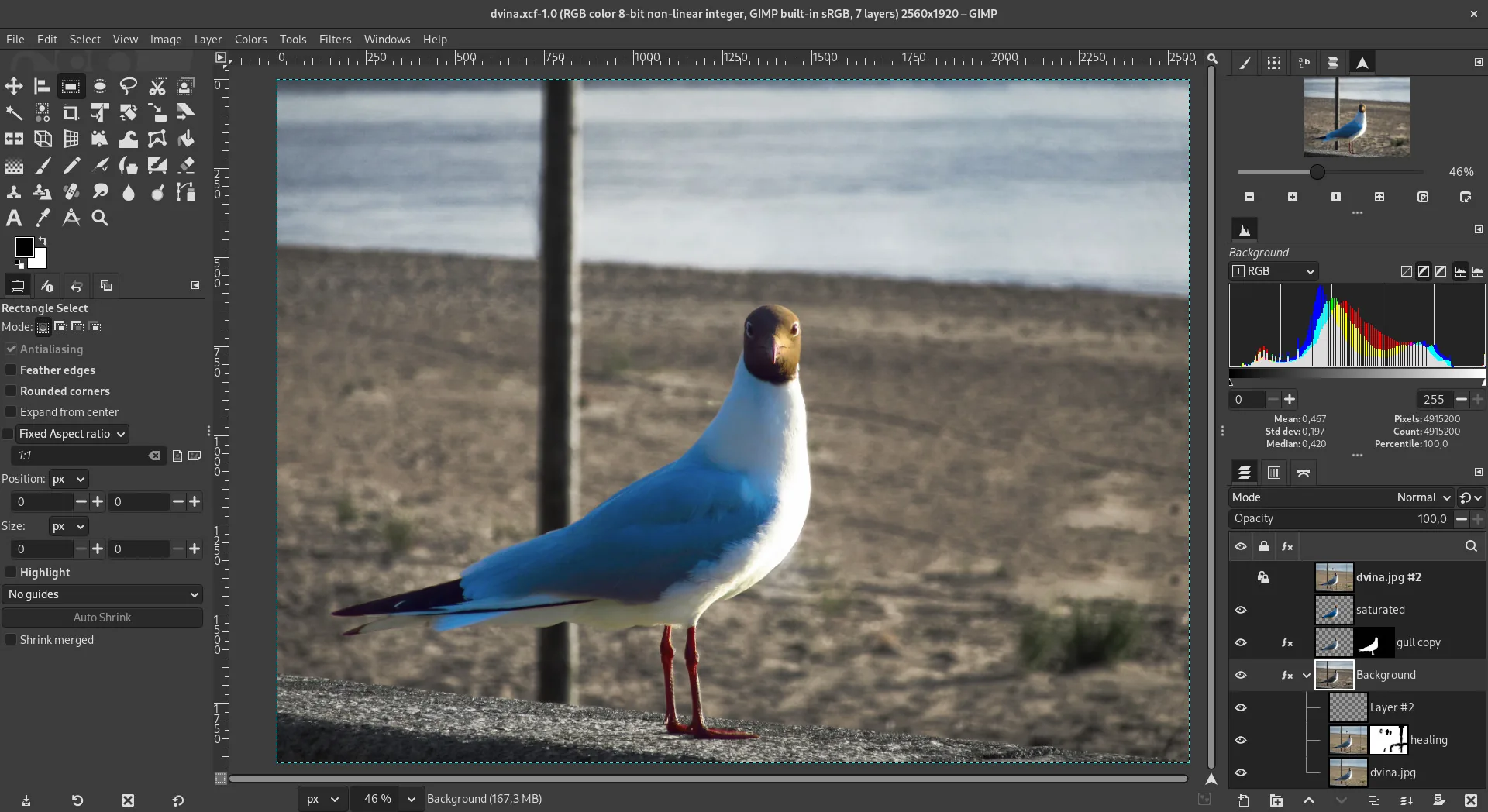
What can you do with it?
- Edit photos: Crop, resize and adjust colours or brightness.
- Touch things up: Remove unwanted objects and repair small blemishes.
- Combine images: Use layers to work on different parts of a picture separately.
- Make graphics: Add text, paint with brushes and put together images for your projects.
Coming from Photoshop?
GIMP covers many common image-editing tasks, but its menus and tools work differently. Give yourself a little time to learn where things are.
If you rely on particular Photoshop features for your work, try a real project in GIMP before deciding whether it suits you. The GIMP tutorials (opens in a new tab) are a useful place to start.
Getting GIMP
Install GIMP from Flathub (opens in a new tab), or check the official downloads page (opens in a new tab) for other options.
Or install through your distro:
 Debian / Ubuntu / Mint / Pop!_OS
sudo apt install gimp Fedora
sudo dnf install gimp Arch / CachyOS
sudo pacman -S gimp